Your iPhone shoots HEIC to save space, but the moment you need to upload a photo to a form, email it to someone on Windows, or drop it into an old app, you need JPG. Here are four ways to get there — all free, and you can do every one of them without leaving your iPhone.
1. Make the camera shoot JPG from now on
If you haven't taken the photo yet, the cleanest fix is to stop shooting HEIC entirely:
- Open Settings → Camera → Formats.
- Tap Most Compatible.

From now on the camera saves JPG instead of HEIC. Two caveats: this does notconvert the photos you already took, and you lose a little of HEIC's storage efficiency. For why Apple defaults to HEIC in the first place, see why your iPhone saves photos as HEIC.
2. Convert existing photos with the Shortcuts app
The Shortcuts app (built into iOS) can batch-convert HEIC to JPG with no third-party app:
- Open Shortcuts and tap + to create a new shortcut.
- Add the action Select Photos(turn on "Select Multiple" for batches).
- Add Convert Image and set the format to JPEG.
- Add Save to Photo Album (or Save to Files).
- Run the shortcut, pick your photos, and the JPG copies are saved.
It takes a few minutes to set up once, then it's reusable forever. The downside: it re-saves into your library, which can get cluttered.
3. Convert in your browser (fastest for a few files)
For a handful of photos, the quickest route is a browser converter — no shortcut to build, no app to install. Open heictojpg.click in Safari, tap to select your HEIC photos, and download the JPGs. Because it runs entirely in the browser with WebAssembly, your photos are never uploaded to a server, and it keeps working even if you go offline after the page loads.
Need a different format instead? The same tool also does HEIC to PNG and HEIC to PDF.
4. Let AirDrop or email do it
A lesser-known trick: when you AirDrop a photo to a Mac, or attach it in some email apps, iOS can send a JPG copy automatically depending on the recipient's settings. It's inconsistent and you don't control the quality, so treat it as a fallback rather than a reliable method.
Which method should you use?
- Never want HEIC again? Change the camera setting (method 1).
- Converting lots of existing photos regularly? Build the Shortcut (method 2).
- Just need a few photos as JPG right now? Use the browser converter (method 3).
Does converting to JPG lose quality?
JPG is a lossy format, so there's a tiny quality cost, but at high quality settings it's invisible for normal photos. The bigger change is file size: a JPG is usually 1.5–2× larger than the same HEIC, because HEIC compresses more efficiently. That trade — bigger file, universal compatibility — is the whole point of converting.
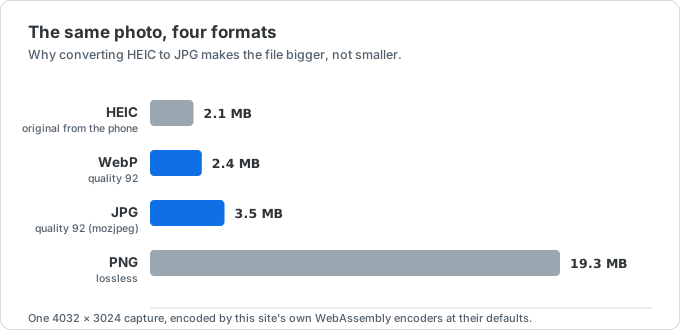
This catches people out when they are converting to free up room on the phone — it does the opposite. If space is the actual goal, leave the library in HEIC and convert only the handful of photos you need to send somewhere. And if a form is rejecting your upload for being too large, quality 92 is not the number you want: see how to compress an image to 200KB.