You took a photo with your iPhone, AirDropped it to your friend on Windows, and got back the immortal question: “What file is this and why won't it open?” Welcome to HEIC — Apple's default photo format since iOS 11 (released September 2017).
HEIC isn't a glitch and your iPhone isn't broken. Apple chose this format deliberately, and there are good reasons for it. There are also good reasons it drives everyone else crazy. Here's the full story.
What HEIC actually is
HEIC stands for High Efficiency Image Container. It's a wrapper format that stores images compressed with the HEVC codec (also known as H.265 — the same video codec used by 4K Blu-rays and high-end streaming). HEIC is part of a broader ISO standard called HEIF (High Efficiency Image Format), so you'll sometimes see .heifas an alternative extension — they're effectively the same format.
Apple shipped HEIC support in iOS 11 in 2017 and made it the default capture format for all iPhones running iOS 11 or later (iPhone 7 and newer). They were the first major consumer platform to adopt it.
Why Apple switched: storage savings
The single biggest reason: HEIC files are roughly half the size of equivalent JPGs at the same visual quality. A typical 12-megapixel iPhone photo:
- As JPG: ~2.5 to 3.5 MB
- As HEIC: ~1.2 to 1.8 MB
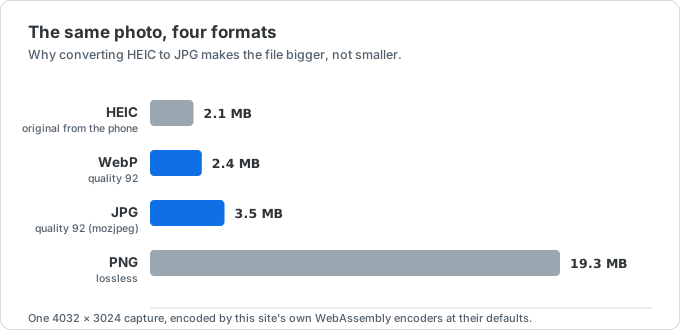
Over a year of casual photography, that's 50–100 GB of saved storage. Multiply that across hundreds of millions of iPhones, and Apple massively reduces iCloud storage pressure (and their costs) plus the chance you'll run out of phone storage and have to delete photos.
It also explains the thing that annoys people most about converting: the JPG that comes out is bigger than the HEIC that went in. You are not doing anything wrong — you are spending the storage Apple saved in order to buy compatibility back.
The hidden quality benefits
HEIC isn't just smaller — it's technically better in several ways that don't get advertised:
- 16-bit color depth(vs JPG's 8-bit). More gradations in color transitions, which matters for sunsets and skin tones.
- Better handling of high-contrast scenes. HDR captures (Live Photos, Smart HDR) preserve more detail.
- Alpha channel (transparency) support, which JPG cannot do at all.
- Multiple images per file — useful for Live Photos and bursts.
- Image sequences and animations — HEIC can hold animations, like a more efficient GIF.
Why it's a compatibility nightmare
Here's the catch: HEIC uses HEVC, which is patent-encumbered. Companies that want to decode it have to pay licensing fees to a patent pool (MPEG-LA). JPG, by comparison, is royalty-free and has been universally supported since the 1990s.
The result:
- Windows 10/11— no native HEIC support out of the box. You need to install the “HEIF Image Extensions” and the “HEVC Video Extensions” from the Microsoft Store.
- Android— partial support depending on manufacturer and Android version. Pixel and Samsung phones generally handle HEIC; many older or budget Android devices don't.
- Most websites — Discord, Slack, Twitter/X, Reddit, WhatsApp Web, most email clients: they reject HEIC uploads or display broken thumbnails.
- Older photo editing software— Photoshop CC needs a recent version; GIMP needs a plugin; many free editors simply can't open HEIC.
How to switch your iPhone back to JPG
If you'd rather have your iPhone shoot JPG by default, you can change this:
- Open Settings on your iPhone
- Scroll down and tap Camera
- Tap Formats
- Choose Most Compatible (which switches to JPG) instead of High Efficiency (which keeps HEIC)

That's it. From now on, new photos will be saved as JPG. Note that existing HEIC photos in your library stay as HEIC — only new captures are affected.
Heads up: switching to “Most Compatible” means your photos take roughly twice the storage. If you're on a 64GB iPhone and a heavy photo-taker, this matters.
The middle-ground option: keep HEIC but auto-convert when sharing
There's a smarter option that most people don't know about. iOS will automatically convert HEIC to JPG when you share or export photos to non-Apple destinations — but only sometimes, and only if a setting is on.
To enable smart conversion when transferring to Mac or PC:
- Open Settings → Photos
- Scroll down to Transfer to Mac or PC and select Automatic

This keeps your iPhone storage tight (HEIC) while making exports more compatible (JPG). But AirDrop, sharing to apps, and uploading directly from Photos can still send the original HEIC, which is why your friends keep getting files they can't open.
How to convert HEIC files you already have
For HEIC files that are already on your computer (or that someone sent you), the simplest option is a browser-based converter that runs the conversion locally without uploading your photos to any server. You can convert HEIC to JPG here in a few seconds — drag in up to 50 files at once, get a zip of JPGs back. Same with HEIC to PNG if you need transparency support or HEIC to WebPif you're targeting web use.
So why did Apple do this?
Three reasons, ranked by how Apple would probably order them:
- Storage. Halving photo file sizes was the killer feature when iPhones were 64GB and iCloud free tier was 5GB.
- Future-proofing. 16-bit color and HDR are baseline for modern displays; JPG is stuck in the 1990s.
- Apple ecosystem lock-in. HEIC works seamlessly inside Apple's walled garden and creates friction when sharing outside it.
Whether the storage win is worth the compatibility headache depends entirely on whether the people in your life are also on Apple devices. If yes, leave HEIC on. If no, switch to “Most Compatible” or use a converter when sharing.
Either way, now you know what you're actually dealing with — and your iPhone isn't broken.