Convert HEIC to PNG. Lossless PNG encoding, in your browser.
Avoid another lossy compression pass for screenshots, text, and graphics. Free, private, and batch supported.
How it works
Three steps, no server, no quality decision to make.
- 01
Drop your HEIC files
Drag and drop, or click to browse. Up to 50 files at once, 50 MB each.
- 02
Decoded and re-encoded locally
WebAssembly reads the HEIC and writes a lossless PNG on your device. There is no quality setting because PNG does not throw anything away.
- 03
Download PNG instantly
Single file? Direct download. Multiple? Get a zip.
Why a lossless format deserves a lossless workflow
PNG is what people reach for when the image has to stay exact — a screenshot, a receipt, a document scan. Uploading it to a stranger's server to keep it exact is a strange trade.
Server-side PNG converters
- Your screenshot sits in a queue on someone else's disk
- PNG files are large, so the upload is the slow part
- Retention promises you cannot verify or audit
- Tight size caps, because uncompressed PNG costs them bandwidth
- Re-encoded server-side, sometimes with quality 'optimisation' you did not ask for
heictojpg.click
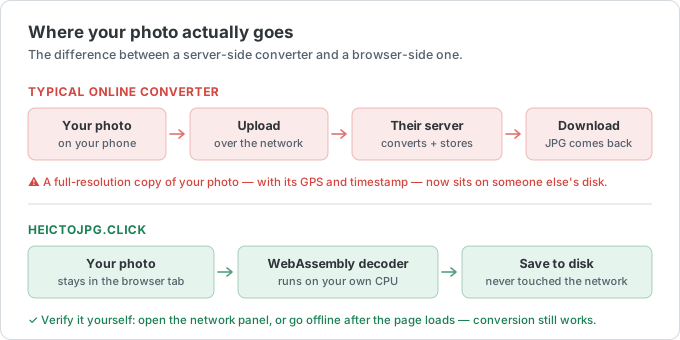
- The decoder runs on your machine; the file never moves
- No upload at all, so file size costs you nothing but RAM
- Nothing to retain, because nothing was ever received
- 50 MB per file, 50 files at a time
- No added lossy compression: decoded pixels are written to PNG exactly
When to convert HEIC to PNG (and when not to)
PNG is lossless and keeps transparency — but that comes at a size cost.
When PNG isn't the best choice
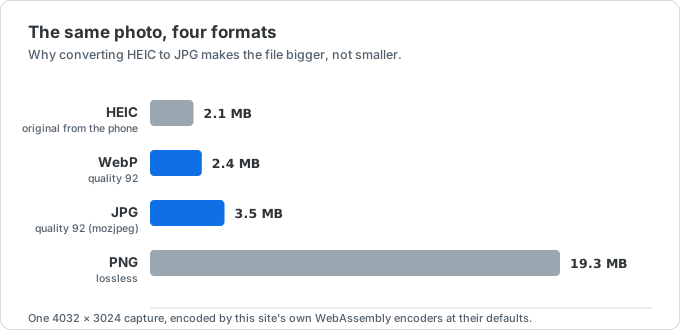
PNG shines for screenshots, logos, diagrams, and anything with transparency or sharp text, because it's lossless — no compression artifacts. The trade-off is file size: for ordinary photographs, a PNG can be several times larger than the equivalent JPG or WebP with no visible quality gain. If you're converting a camera photo just to share or upload, JPG or WebP will be far lighter.
PNG has no quality slider — it stores every pixel exactly. That's a feature for graphics and a waste of bytes for photos.
How this compares to the other converters
For photos headed to the web, HEIC to WebP gives PNG-like quality at a fraction of the size. For universal compatibility, HEIC to JPG. To combine several images into one printable file, HEIC to PDF. And if a PNG still comes out too large for an upload limit, run it through the image compressor.
What to expect from the file size
Lossless does not mean small. PNG compresses with DEFLATE, which works by finding repetition — runs of identical pixels, flat areas, repeated patterns. Screenshots, diagrams and text are full of that and compress dramatically. Photographs are mostly sensor noise, which has no repetition to find, so a photo barely compresses at all.
In practice: a 12-megapixel iPhone photo is around 2 MB as HEIC, and 4032 × 3024 pixels at three bytes each is roughly 35 MB uncompressed. As PNG it usually lands between 15 and 25 MB — five to ten times the HEIC. The same conversion on a screenshot might produce 400 KB. If one file in a batch hits the 50 MB ceiling, that is why.
The encoder is oxipng — the same lossless optimiser Squoosh uses — compiled to WebAssembly and run on your machine. Output is 8 bits per channel plus alpha, which is worth knowing if your source is a wide-gamut or HDR capture: the extra bit depth is not carried into the PNG.
Transparency only survives if it was there to begin with
PNG supports transparency and so does HEIC, but a photo taken with the iPhone camera has no transparent pixels — there is nothing for a camera to make see-through. Converting a camera HEIC to PNG gives you a lossless copy, not a cut-out. Alpha carries through only when the HEIC was written by an app that actually stored an alpha channel.
If what you want is a subject on a transparent background, that is background removal, not format conversion: no converter can recover an alpha channel that was never recorded. What conversion does solve is the opposite problem — a PNG that came out too large for an upload limit, which the image compressor can bring down.
HEIC to PNG FAQ
Questions about lossless PNG conversion. Email us.
When should I convert HEIC to PNG instead of JPG?
Choose PNG when you need an alpha channel, lossless encoding of the decoded pixels, or sharp text and edges — logos, screenshots, diagrams, stickers. For everyday camera photos you plan to share or upload, JPG or WebP is usually smaller with no visible quality loss.
Is PNG conversion lossless?
The PNG encoder is lossless: it stores the decoded 8-bit pixels exactly and has no quality slider. The conversion does not preserve HEIC metadata, HDR behavior, or extra bit depth, so keep the original for archival use. PNG output is also often several times larger than JPG or WebP.
Does HEIC to PNG keep transparency?
If the source has an alpha channel that the decoder exposes, PNG can keep transparency. Ordinary iPhone photos are usually opaque; transparency matters more for graphics exported as HEIC or HEIF with alpha.
Is my screenshot or scan uploaded anywhere?
No. The HEIC is decoded and the PNG is written by WebAssembly running on your own device, so the file never touches a server. That matters more than usual here, because the images people convert to PNG are typically screenshots, receipts and document scans. Load the page, go offline, and conversion still works — which is the simplest proof that nothing is being sent.
Can I batch convert HEIC to PNG?
Yes. Drop up to 50 files (up to 50 MB each). One file downloads directly; multiple files come as a ZIP of PNGs.
Is there a size or file-count limit on the free version?
There is no free version, because there is no paid one. The limits — 50 MB per file, 50 files per batch — exist because your own browser has to hold the decoded image in memory, not because of a plan. PNG output is uncompressed, so it is the format most likely to reach them; the site is funded by ads and there is no signup or watermark.