Higher quality keeps more detail and usually creates a larger file.
Convert HEIC to PDF. Shareable. Printable. Browser-side.
Turn iPhone HEIC photos into PDF documents anyone can open, print, or email. Free, private, batch supported.
How it works
Three steps, and the order you drop files in is the page order.
- 01
Drop your HEIC files in page order
Files are added in the order you select them, and that is the order the pages appear. Up to 50 images in one document.
- 02
Pages built in your browser
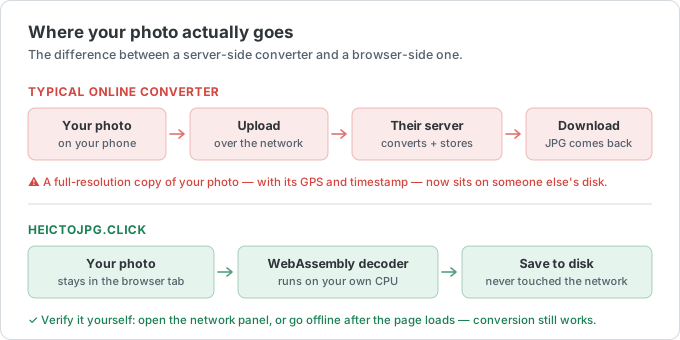
Each photo is decoded locally, scaled to fit the page, and written into a single PDF on your device — the document is never assembled on a server.
- 03
Download one PDF
Every image lands in one file, ready to email, print, or upload.
Documents are the worst thing to upload to a converter
People convert HEIC to PDF to file something: a passport page, a signed form, a receipt, a medical letter. That is precisely the category of image that should not be sitting in a third party's temp directory.
Server-side PDF converters
- ID documents and signed forms uploaded to an unknown host
- Pages assembled server-side, so the whole document exists there
- Deletion is a policy sentence, not something you can check
- Page count and file size limits on the free tier
- Some add a watermark or a footer to the PDF they hand back
heictojpg.click
- The PDF is assembled in the page, on your device
- The document is never transmitted anywhere, in whole or in part
- Nothing is stored, so there is nothing to delete
- Up to 50 pages in one document, 50 MB per image
- No watermark, no footer, no account
When to convert HEIC to PDF (and when not to)
PDF turns your photos into one document — ideal for printing, emailing, and paperwork.
When PDF isn't the best choice
PDF is the right format when the photos are really a document: a set of receipts, scanned pages, ID copies, or a portfolio you want to print or email as one file. It keeps page order and prints predictably. But a PDF is not an editable image — if you need to crop, retouch, or post a single picture to social media or a website, convert to JPG or PNG instead.
Each photo becomes a page. For a single image that just needs to be viewable everywhere, JPG is simpler.
How this compares to the other converters
Only converting individual images? HEIC to JPG, PNG, or WebP. Already have JPGs or PNGs to bundle instead of HEIC? The image-to-PDF tool does the same for standard image formats. And if the finished PDF is too big to email, the image compressor can shrink the photos before you combine them.
What the PDF actually contains
Each image becomes one page sized to that image's own pixel dimensions, and orientation follows the photo. A mixed batch of portrait and landscape shots therefore produces a document with mixed page orientations rather than white letterbox bars around half the pages.
The photos are embedded as JPEG at quality 92, not as lossless data. That is what keeps a 40-page document small enough to actually email, which is usually the point of making one; if you need pixel-exact pages, keep the images separate and convert them to PNG instead.
Page order is the order the files were added, and browsers hand over a multi-file selection in their own order — not always the one you see on screen. For a document where sequence matters, such as a form or a set of scanned pages, add the files one at a time, or rename them 01, 02, 03 before selecting them.
Printing, paper size, and what to do about it
Because pages are sized to the image rather than to A4 or Letter, the result is a faithful container rather than a print layout. Every print dialog has a "fit to page" or "scale to paper size" option that resolves this in one click, so there is no need to crop your photos to paper proportions beforehand.
If a submission genuinely requires exact A4 or Letter pages, crop to that aspect ratio first — the ID photo tool does fixed-ratio cropping — or print the finished PDF to a virtual A4 printer. And if the document comes out too heavy for an attachment limit, shrink the photos with the image compressor before combining them.
HEIC to PDF FAQ
Questions about turning photos into PDFs. Email us.
When should I convert HEIC to PDF?
Use PDF when photos are really a document: receipts, scans, ID copies, or a multi-page set to print or email as one file. PDF keeps page order and prints predictably.
Can I merge multiple HEIC photos into one PDF?
Yes. Drop several HEIC files and the converter builds a multi-page PDF (one image per page). For JPG/PNG inputs instead of HEIC, use the image-to-PDF tool.
Is a PDF good for posting a single photo online?
Usually not. Social networks and CMS uploads expect JPG, PNG, or WebP. Convert to those formats for web and social; use PDF for documents and print.
Is my document uploaded anywhere?
No. The pages are assembled into the PDF inside the browser tab, on your device. The document does not exist on any server of ours — not the images, not the finished file. Since HEIC-to-PDF is mostly used for passport pages, signed forms and receipts, this is the whole reason the tool works the way it does.
The PDF is too large to email — what now?
Compress the photos first with the image compressor, then convert or merge again. Large HEIC originals make large PDFs because each page embeds a full-resolution image.
Is the PDF watermarked or page-limited?
No watermark, no footer, no page cap beyond the practical one: up to 50 images in a single document, 50 MB each. Nothing is added to the file you download, because nothing on our side ever touches it. The site is funded by ads and there is no paid tier to upsell you to.