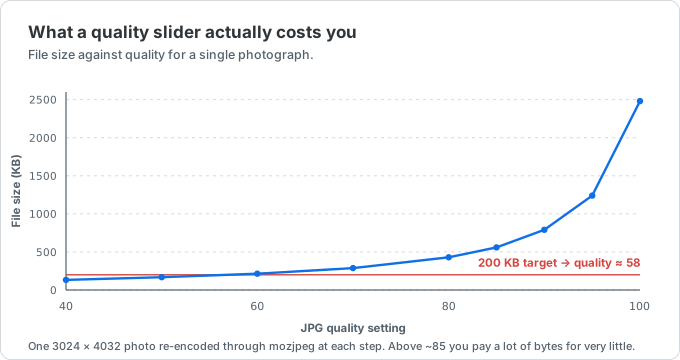
Higher quality keeps more detail and usually creates a larger file.
Squoosh can't open your HEIC. Convert it here first.
Drop your iPhone photos to get JPG files Squoosh will actually accept — or skip the second step and compress them here. Everything runs in your browser.
Why Squoosh won't open your HEIC — and what to do instead
Squoosh is an excellent image compressor. HEIC is simply a format it can't read on most browsers. Converting first takes one step.
The problem: a .heic file that silently fails to load
You dragged a photo straight off your iPhone into Squoosh and got nothing — an error, a blank panel, or a file that just won't open. Nothing is broken. Squoosh has no HEIC decoder of its own, so it hands unknown formats to the browser, and Chrome, Firefox and Edge have no HEIC decoder either. Safari on a Mac or iPhone can decode HEIC, so there it may work.
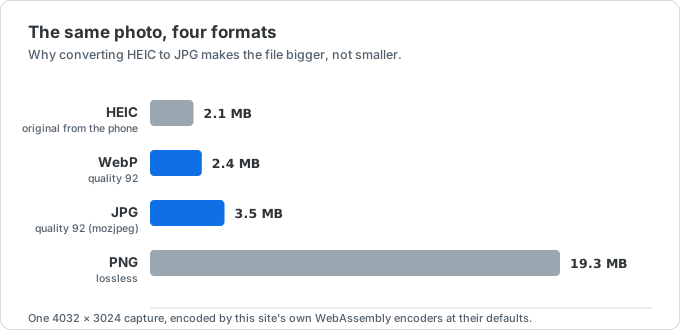
That is the whole story: HEIC files are HEVC-compressed images in a HEIF container, and HEVC carries patent licensing that keeps it out of most browsers. Squoosh bundles WebAssembly codecs for JPEG, PNG, WebP, AVIF and JPEG XL — but not HEIF.
What you need, and what to do with it
Any .heic or .heif file from an iPhone or iPad, up to 50 MB, up to 50 at a time. Drop it in the converter at the top of this page, pick JPG (or PNG if you plan to edit further), and download. This page bundles its own HEIC decoder compiled to WebAssembly, so it works in every modern browser, including the ones Squoosh fails in.
Take the converted file into Squoosh if you want its side-by-side view and per-codec controls. If all you needed was a smaller file, our image compressor already runs MozJPEG, libwebp and OxiPNG — the same open-source codecs Squoosh uses — with batch input and an exact target-size mode, so you can skip the second tool entirely.
When two steps cost you quality (and how to avoid it)
Converting to JPG and then compressing that JPG in Squoosh re-encodes the image twice, and every lossy pass throws away a little more detail. On a normal photo you will not see it. On anything with hard edges — screenshots, text, illustrations — the second pass can smear the edges.
Two ways around it: convert to PNG here (lossless, larger) and let Squoosh do the single lossy encode, or convert to JPG here at high quality and stop. The quality slider above the drop zone controls the conversion, so leave it high if the file is headed for another encoder.
Squoosh, this converter, and our compressor
Squoosh is a codec playground: one image at a time, a divider to compare original against output, and a knob for nearly every encoder setting. If you want to A/B AVIF against JPEG XL by eye, use Squoosh. It just can't take HEIC as input on most browsers.
This page does one thing: turn HEIC into something every tool can read. Our image compressor sits in between — presets instead of knobs, up to 20 files at once, a target-size mode for upload limits, and a before/after slider borrowed from the same idea Squoosh made popular. All three run entirely on your own machine.
Need the photo under a hard size limit, like 200 KB for an application form? Compress it to an exact size here after converting.
Squoosh and HEIC FAQ
What people ask after a .heic file refuses to open. Anything missing? Email us.
Does Squoosh support HEIC?
Not on its own. Squoosh ships WebAssembly decoders for JPEG, PNG, WebP, AVIF and JPEG XL, and relies on the browser for anything else. Chrome, Firefox and Edge cannot decode HEIC, so the file fails to load there. Safari on macOS and iOS can decode HEIC, so it may open. Converting to JPG or PNG first works everywhere.
Why can't browsers open HEIC files?
A HEIC file is an HEVC-compressed image in a HEIF container. HEVC is covered by patent licensing that most browser vendors have not taken on, so Chrome, Firefox and Edge ship no HEIC decoder. Apple licenses it, which is why HEIC works across macOS, iOS and Safari.
How do I open a HEIC file in Squoosh?
Convert it first. Drop the .heic file into the converter at the top of this page, download the JPG or PNG, then open that in Squoosh. If you plan to compress hard in Squoosh, convert to PNG so the image is only lossily encoded once.
Is this an official Squoosh tool?
No. We are not affiliated with Google or the Squoosh project in any way. Squoosh is an open-source project by GoogleChromeLabs, and we link to it because it's genuinely good. What we share is the codecs: MozJPEG, libwebp and OxiPNG are open source, and both tools run them locally in the browser.
Are my photos uploaded anywhere?
No. Decoding and re-encoding both happen in your browser with WebAssembly. Your files never leave your device, and the page keeps working if you go offline after it loads.
Can I convert many HEIC files at once?
Yes — up to 50 files, up to 50 MB each, downloadable individually or as one ZIP. Squoosh handles one image at a time, which is another reason to finish the job here if you have a folder of photos.